Journeys in awesomewm
Starting with March of 2025, I switched over from Windows to Linux Mint (Cinnamon) and it's what I use daily. Windows has just been getting worse and worse, so its very nice to be able to step away from Windows and Microsoft.
Switching to Linux made me more interested in experimenting with how I want my computer-using experience to be. I wanted to see if other people had different takes on how the desktop experience should be and see if I would like any of them! Specifically, I was interested in trying out different window managers.
Most of the features I mention are probably available in some form on Windows and macOS as additional programs you can install, but this is just my journey of trying it out in Linux.
Tiling Window Managers
The most popular idea of a "desktop computer interface" is a graphical one where you open different programs and they appear on the screen in a "window" and can be dragged and stacked on top of one another like sheets of paper. Windows, MacOS, and most popular Linux Desktop Environments have this "stacking window manager" style.
I wanted to try out a "tiling window manager". The main difference is that the windows are automatically sized and moved so that each window is made as big as it can be without overlapping other windows. Window tiling is a feature that many operating systems have built in (dragging a window to the edge of the screen to "snap" it), but a tiling window manager does this automatically and all the time, so that I don't have to do it manually.
Many tiling window managers often make use of virtual desktops / spaces / workspaces / multiple desktops / tags (everyone calls it a slightly different thing). Essentially, it's different "screens" where open programs can live and you can switch between whole screens, allowing you to quickly switch between different sets of windows. There are many slight variations in how this works across operating systems and tiling window managers. I would say that workspaces is a highly critical feature for me. I use it extensively and I would never go back to not using it. In Windows, I have a whole setup with Autohotkey to turn the CapsLock button into a special modifier key (kind of like the shift / windows / command / alt keys) that allows me to switch to different workspaces and move windows to different workspaces. It's definitely a hacky solution that works, but sometimes breaks with Windows updates. Linux Mint makes it easy because instead of having to use something like autohotkey, it just has a built-in settings menu where I can assign these actions to keyboard shortcuts very easily*.
*Ok yeah actually this is another rabbit hole because in order to use caps lock as a modifier key, it requires additional setup which is a whole thing.
awesome Window Manager
There are many different tiling window managers out there, so I just had to pick one. After deliberating for a bit on which tiling window manager to use, I decided on awesome. Technically awesome is a dynamic window manager which can do the traditional stacking windows, but obviously I would want to use the tiling features most of the time. This was mostly an arbitrary choice because I hadn't tried any tiling window manager, so I didn't know what I preferred yet. Though, I was more inclined to use awesome because you customize it with the Lua programming language, and I've grown to really like Lua for this kinda stuff (maybe I'll make a "Journeys in Neovim" at some point).
So, I installed it in Linux Mint. I dunno if this is a recommended thing to do in Linux Mint, because you won't be using the nice desktop environment that comes with the operating system and all of the nice Windows-like settings menus and stuff. I did it anyways, and maybe I will reap what I sow in the future, but I haven't yet. Either way, I can still use the default desktop environment if I need the stock Linux Mint interface.
In awesome, the tiling works by using a set layout that will determine how new windows will be organized. As you open or close windows, the other windows will fill the remaining space according to the layout. You can switch to different layouts which will shuffle around all of the windows. Other tiling window managers will require you to decide where each new window goes (choosing between splitting an existing area vertically or horizontally), which allows for more flexibility, but I like the automatic layout. I ended up just liking one of the default layouts, and I use it all the time. The layout is called "tile left" which makes the right half of the screen the main window, and all other windows will share the left half by arranging themselves vertically in a column and I find that sufficient for most cases.
And, when you load it up you get this interface by default:
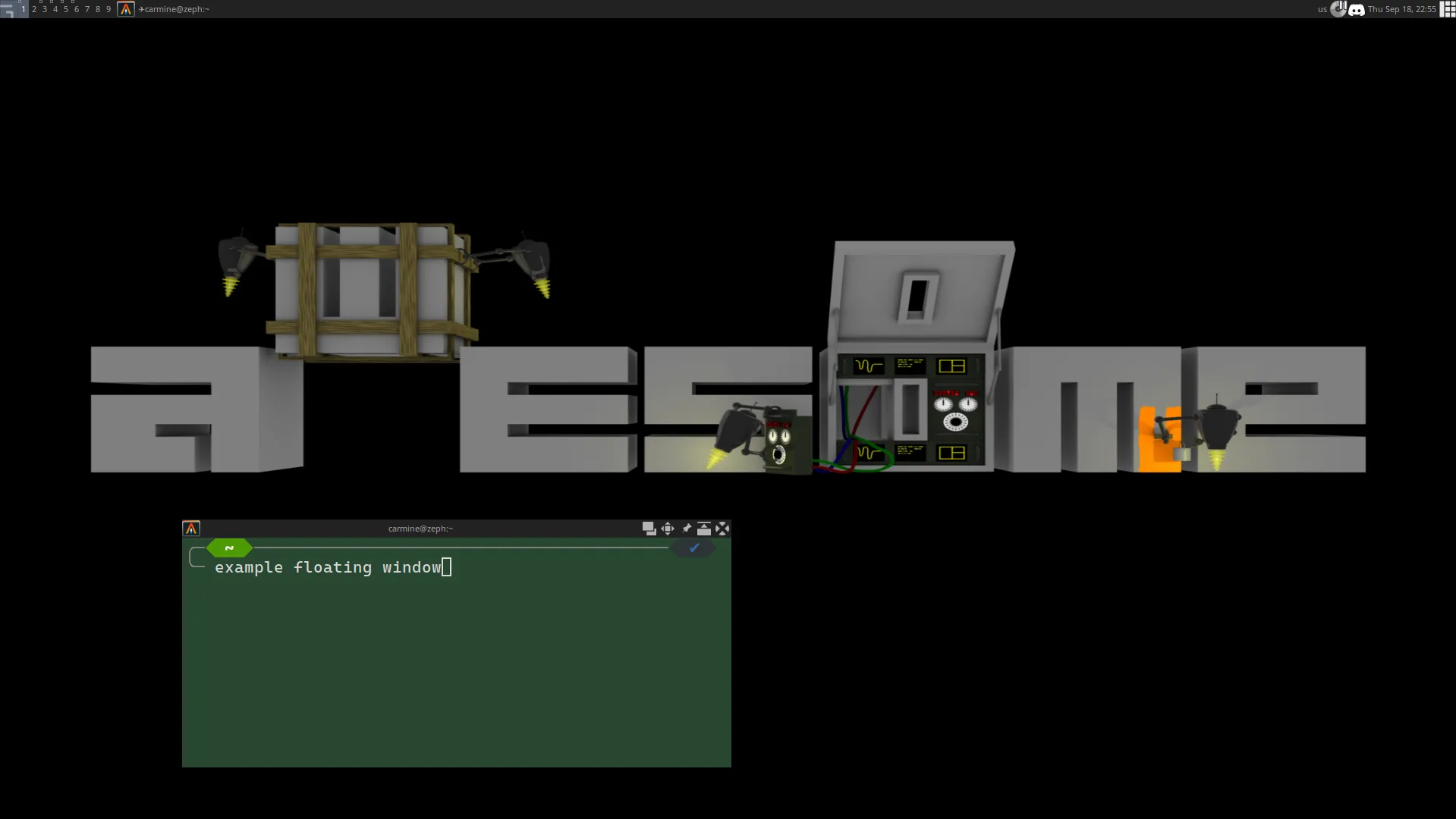
It certainly works, but I definitely needed to change it up to suit my tastes. Tiling window managers are often very simple by default, but offer in-depth customization. You see, there was a secret reason as to why I wanted to try using a tiling window manager: I WANTED TO FULLY CUSTOMIZE MY DESKTOP UI LIKE A SICKO AHAHAHA.
This really made me see how I take certain features for granted. awesome’s default interface is fine enough, but it is very bare bones.
You don’t have things like:
- Battery Indicator widget for laptops
- Screen brightness control for laptops
- Power profiles widget
- Calendar widget
- Bluetooth widget
- Wi-fi / network widget
- Volume widget / volume control in general (even if you have buttons, they don’t work)
- Media key control (pause, play, skip)
- System power menu (for things like sleep, shut off, restart, etc.)
- Visible files on desktop
- Playing a sound when you connect a USB device
- Automatically adjusting the screen layout when you plug in or disconnect a monitor
Of course, since I installed this on top of an already existing desktop environment, all of these features exist on the machine, but need to be hooked up (or are standalone programs that still work). All you need is the ability to write Lua code and the patience to endure learning this whole new system by reading its documentation and you can basically do whatever you want.
You can use Lua to write code to draw shapes onto the screen to act as UI elements and you can put buttons and things that execute whatever functions you set up in your config file. awesome has a few built in features that you can add or not add in your own setup. Stuff like the taskbar, workspace switcher, a menu to search and run programs, system tray, and clock are all included in the default interface and it's all pretty modifiable. The Lua configuration also handles things like detecting and executing keyboard shortcuts, so you can go wild with all sorts of specialized functions. Also, there are many features that other users have made and you can often just drop them into your setup and modify them to suit your needs, so it's not that bad.
Making changes is as simple as modifying the configuration files, reloading awesome, and seeing the result. You do kind of need to be careful with making changes; If there’s an error in the config file, then the default UI will be loaded as a fallback, but if you do something silly like, accidentally disable the code that draws windows on the screen (like your text editor), then you could reload into a “working” setup where you can’t easily undo what you did. Barring things like that, I think it’s a very fun activity. I love the experience of making a change to the configuration and reloading the window manager to see my changes instantly (or see the default UI when I make an error).
If you do end up locking yourself out of easily undoing your changes (ask me how I know), you should be able to fix it by:
- Changing into a tty interface using ctrl + alt + a function key
- Fix the configuration file using a terminal based text editor
- Reload awesome with the terminal command "awesome-client 'awesome.restart()'"
- Change back into the awesome interface with control + alt + some function key (you just have to try the function keys until you find the right one, for me it's F7)
My Personal Setup
My initial goal for this was to try and create a user interface that would thematically fit with my current desktop background. Right now, it's this piece by Aurahack:

I wanted to use the background image as a palette that I could incorporate into the various UI elements on the screen (I wanted to focus on the greens the most). It's a balance between picking colors from the image and actually having something that has good enough color contrast to have readable text. So, I have to modify the colors while trying to keep them faithful to the image. Picking colors is not a strong skill that I have in art.
If I think too much about the colors, I will want to fiddle with them again, but here's what I have so far:
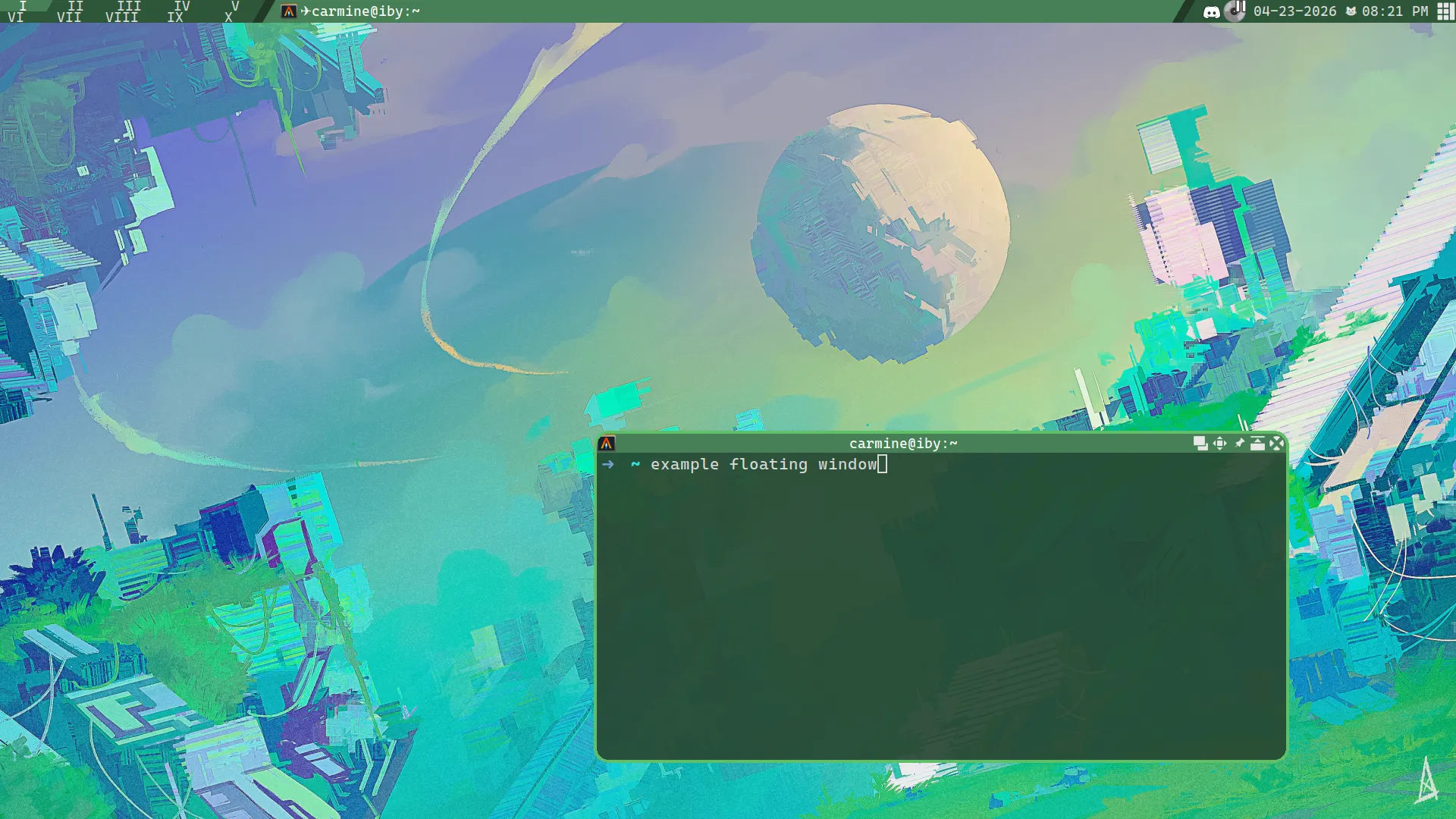
As for the taskbar itself (awesomewm converted me to enjoy top taskbars), I am using parallelograms instead of rectangles or rounded corners because I thought it would look cool. This is a design choice that often causes the most pain. The parallelograms can fit together in ways that their rectangular bounding boxes can't, so I have to use negative margins for things to fit together, and it's a whole thing.
Tag Setup
The top left is the widget for switching between different virtual desktops, or as awesome calls them, tags. The Tag system in awesome is a bit different because it allows one window to belong to multiple tags, so you can have one window appear in multiple tags. You can also view multiple tags at the same time to mix and match. I don't use it like this because I'm used to each window belonging to one virtual desktop like in Windows.
I have 10 tags in total, each named with Roman Numerals.
Some of the tags have specialized functions:
- III - Google Calendar and Obsidian
- IV - Discord
- V - Music player (I use Tauon)
Having immediate access to certain programs at all times is very useful, and I'm so used to it at this point that it's an essential feature for me. I never have to fiddle around with opening different windows to access programs when I need to and then minimizing them when I'm done: it's just always a keyboard shortcut away. awesome even has the ability to define "rules" for what tags certain programs will open in, so those programs will always be in the right place on launch.
I mainly use I / II as my primary / secondary workspaces, which is useful for things like having a program open and a web browser for searching. If I need more workspaces, then I can use VI - X for anything that I need.
Each workspace is accessible through keyboard shortcut or by clicking on the buttons in the top left. The workspaces are arranged in a rectangle with 5 columns and 2 rows, and the caps lock + a, s, d, f, and g keys allow you to change which column you are selecting. If you input the shortcut for the column that you are already in, then you toggle between which row you are selecting. This allows for accessing 10 tags with only 5 unique buttons (which are easily pressed with only the left hand). I don't know if anybody has made this multi-row tag switcher system before, but I made the system that I'm currently using and I really like it.
The flexibility of keyboard shortcuts in awesome means that I can have shortcuts for a bunch of functions that would normally be mouse-only on other machines (or have keybinds that I can’t easily change). This is great because I would prefer to not use the mouse if I can get away with it. I have keyboard shortcuts for swapping windows around, changing which window is focused, moving windows to different monitors, full screening windows, maximizing and minimizing windows, resizing windows, and closing windows.
Launching Programs
There is no "start menu" like you would have in other operating systems.
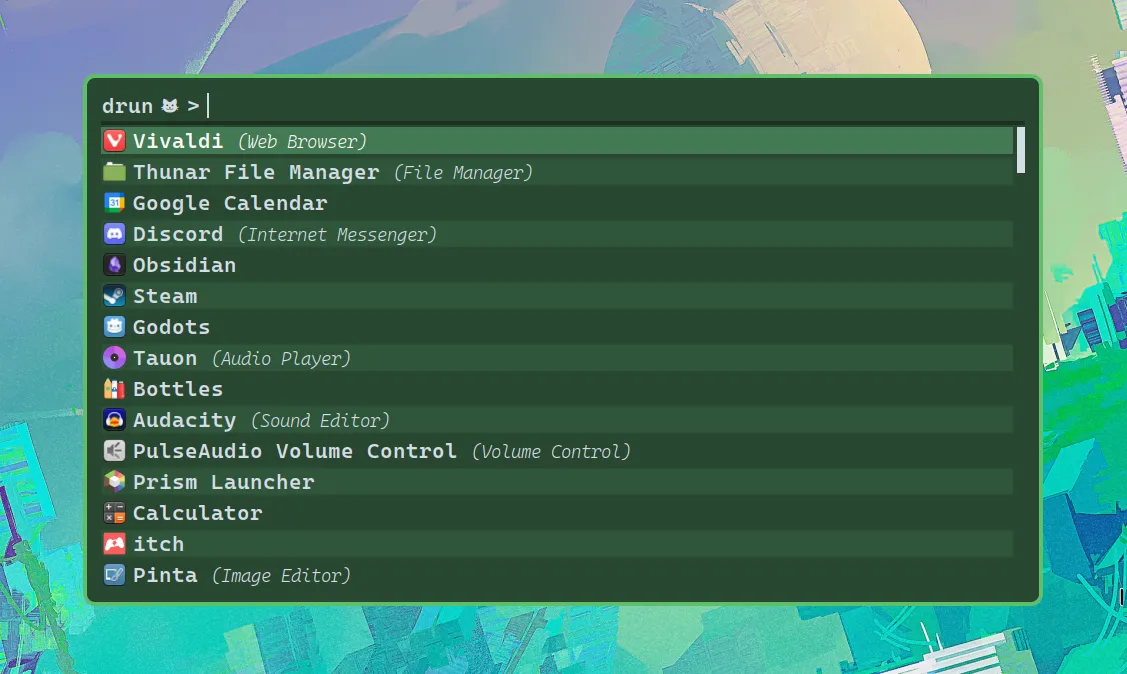
In order to launch programs, I use a tool called rofi and I have bound that program so that it runs when I press the "windows" key. It opens up a menu where I can search for programs and I have styled it to fit with the theming of the window manager.
Conclusion
This is the kind of thing where your work of tinkering around with it may never be fully finished, and I happen to find it pretty fun. I can personalize things to get them exactly how I want and I have so many different ideas of how I want to change things. Would I recommend this to anyone? Likely not unless you are also a sicko like me.